The EspoCRM app
Send documents for signature from EspoCRM records with the S+M eSign app, and get the signed PDF back on the record.
The S+M eSign for EspoCRM app adds Send for Signature to the records you choose. The signed, sealed PDF comes back to EspoCRM by itself, attached to a Document linked to the record.
It works with EspoCRM 9 and 10 (PHP 8.1 or newer). It is free, but needs an eSign workspace (see Getting started). The app's screens are in English.
Install
- In EspoCRM, open Administration → Extensions, upload the app's zip file and choose Install.
- Check Administration → Settings → Site URL: it must be your CRM's public
https://address, because eSign sends its updates there. - Fill in Administration → S+M eSign (below).
- On each PDF template you send for signature, tick Use for signature.
- Optional: with the Layout Manager, add the eSign fields to the Document layouts.
To upgrade, install the new zip over the old one.
Administration → S+M eSign
Connection
| Setting | What to enter |
|---|---|
| Enabled | Tick to turn the app on. |
| eSign URL | Your eSign address. |
| Notification URL (set automatically) | Where eSign sends updates; nothing to change. |
| API key | The API key for your workspace, from S+M. |
| Webhook secret | The secret for CRM notifications, from S+M. |
Choose Save & test connection: you should see Connected to eSign.
Send for Signature
Switch on the record types that can be sent for signature, and for each choose Who signs: The record itself (for example a Contact) or A contact of the record (for example an Account's contact). Record types start off after installing or upgrading.
Important
Switching on a record type that doesn't have Documents yet adds a Documents panel to it. On EspoCRM 9, only Accounts, Contacts, Leads and Opportunities can be switched on; on EspoCRM 10, any record type that can have Documents.
PDF template settings
Each PDF template has a Signature panel:
- Use for signature: offer this template in Send for Signature. Templates without it are for Print to PDF only. Only active templates are offered.
- On signature, set date field: when a document from this template is fully signed, write the signing date into this field of the record it was sent from (for example Agreement signed on). Leave empty to change nothing.
- Requires signed: block sending this template until a document from another template is fully signed for this record or the record it belongs to (for example an agreement before a quote), or that template's date field is already filled in.
Mark where the client signs with markers.
Values for templates
Besides the record's own fields, templates can use:
{{esign.sender.name}}and the otheresign.senderfields: the user who clicks Send.{{esign.signer.name}}and the otheresign.signerfields: the person who signs.{{dateFormat esign.today format='MMMM D, YYYY'}}: today's date.
Send for signature
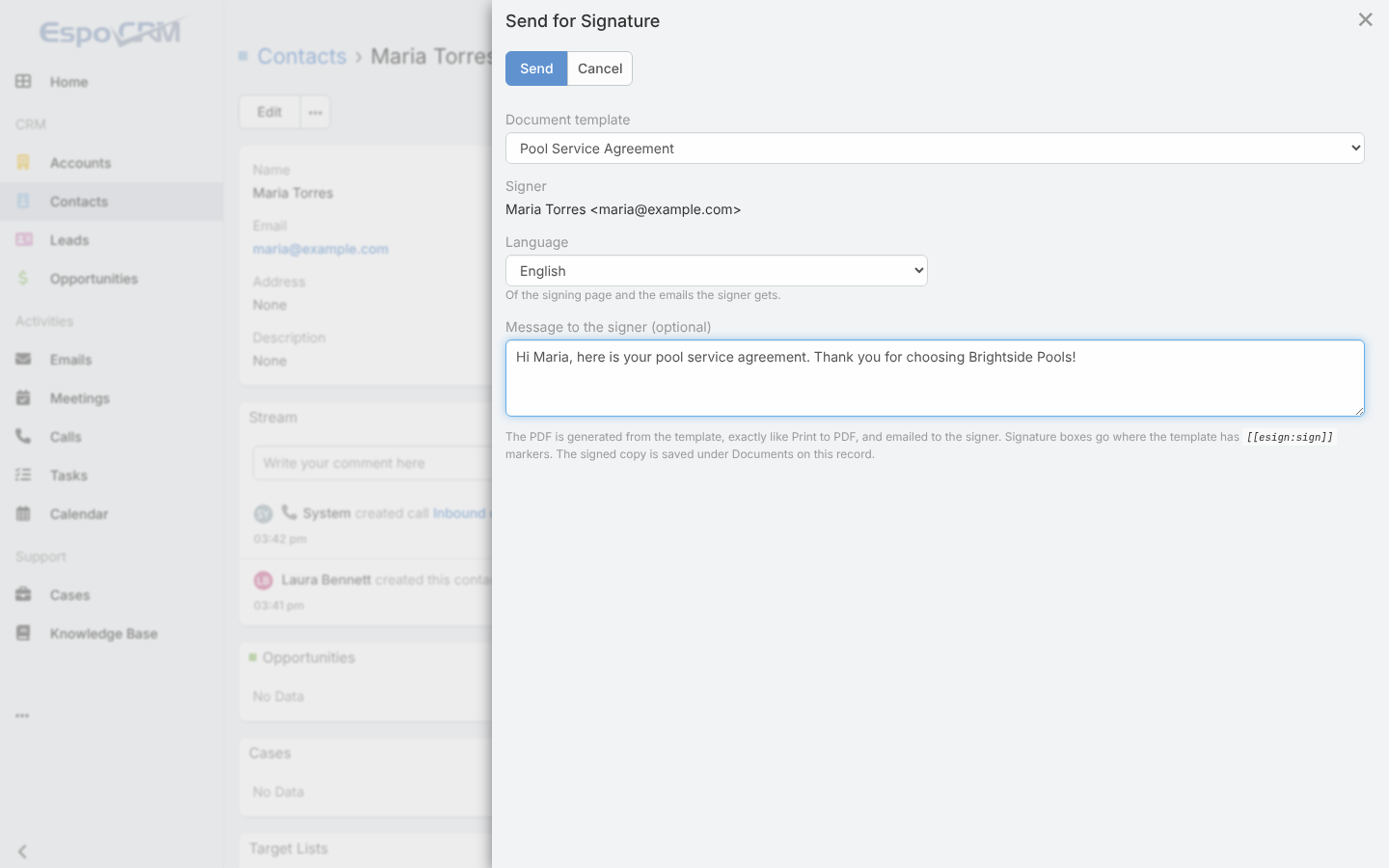
- On the record, open the ⋯ menu and choose Send for Signature.
- Choose the Document template and the Signer.
- Choose the Language of the signing page and emails: Company default, English or Español.
- Optional: write a Message to the signer.
- Choose Send.
eSign emails the signer a personal link. A Document named Template — Record is created, linked to the record, and a note is posted in the record's stream.
To cancel a request, open the Document, then ⋯ → Void Signature Request.
Note
Documents sent from EspoCRM have one signer. To have several people sign, use the API.
What comes back to EspoCRM
The Document's Signature Status follows the request:
| When | Signature Status | Also |
|---|---|---|
| The signer opens it | Viewed | A note in the stream. |
| Everyone has signed | Completed | The sealed PDF is attached as … - signed.pdf and checked against its fingerprint; the template's date field is set on the record it was sent from. |
| The signer declines | Declined | The note includes their reason. |
| The link expires | Expired | |
| You void it | Voided |
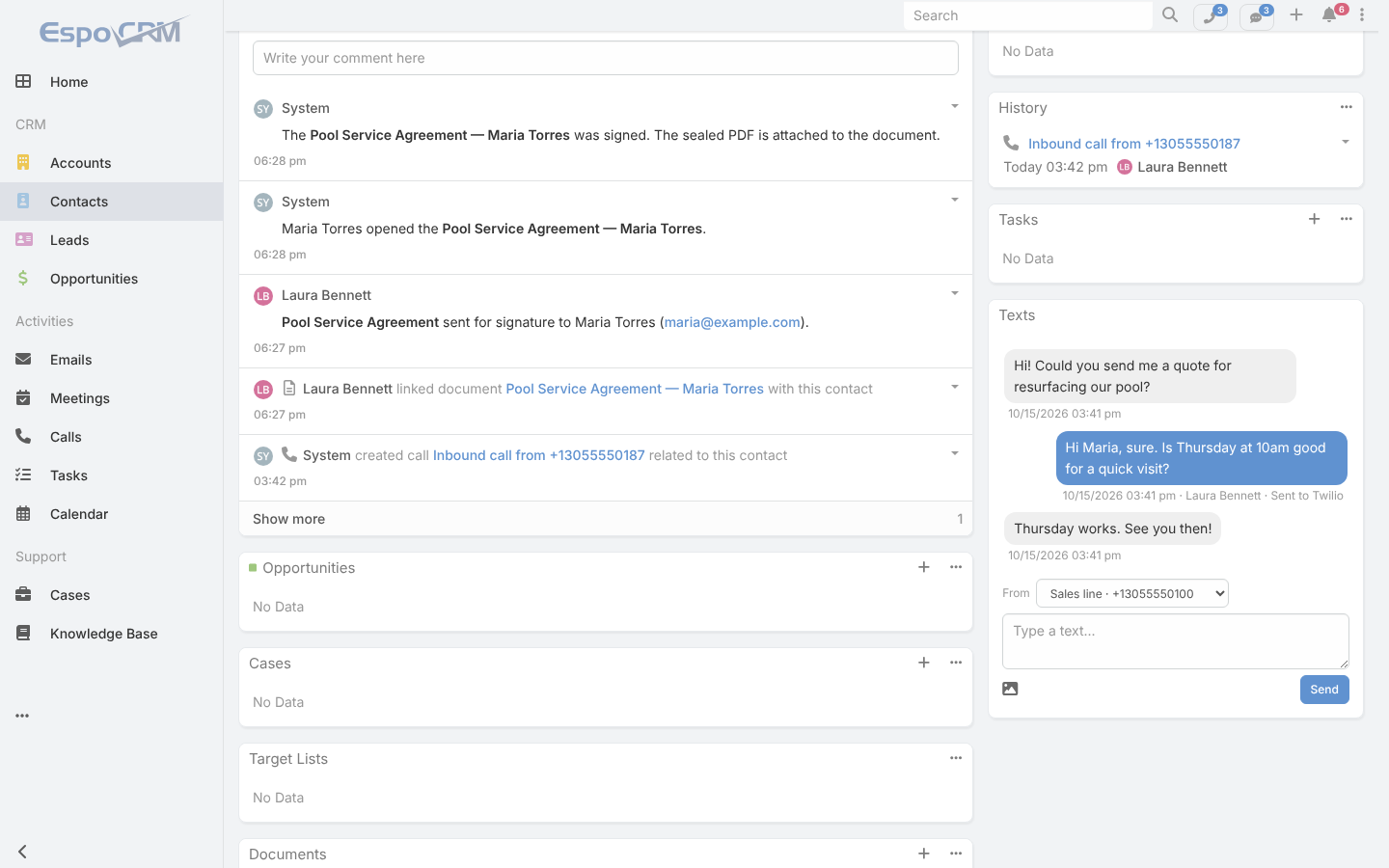
Other Document fields: Signer, Sent for Signature, Viewed by Signer, Signed (Completed), eSign Envelope ID, Signed PDF Fingerprint (the sealed PDF's SHA-256), Sent From and Template.