Daily use
Caller pop-ups, the Calls list, call logging, the Call button, recordings and texts in EspoCRM.
When the phone rings
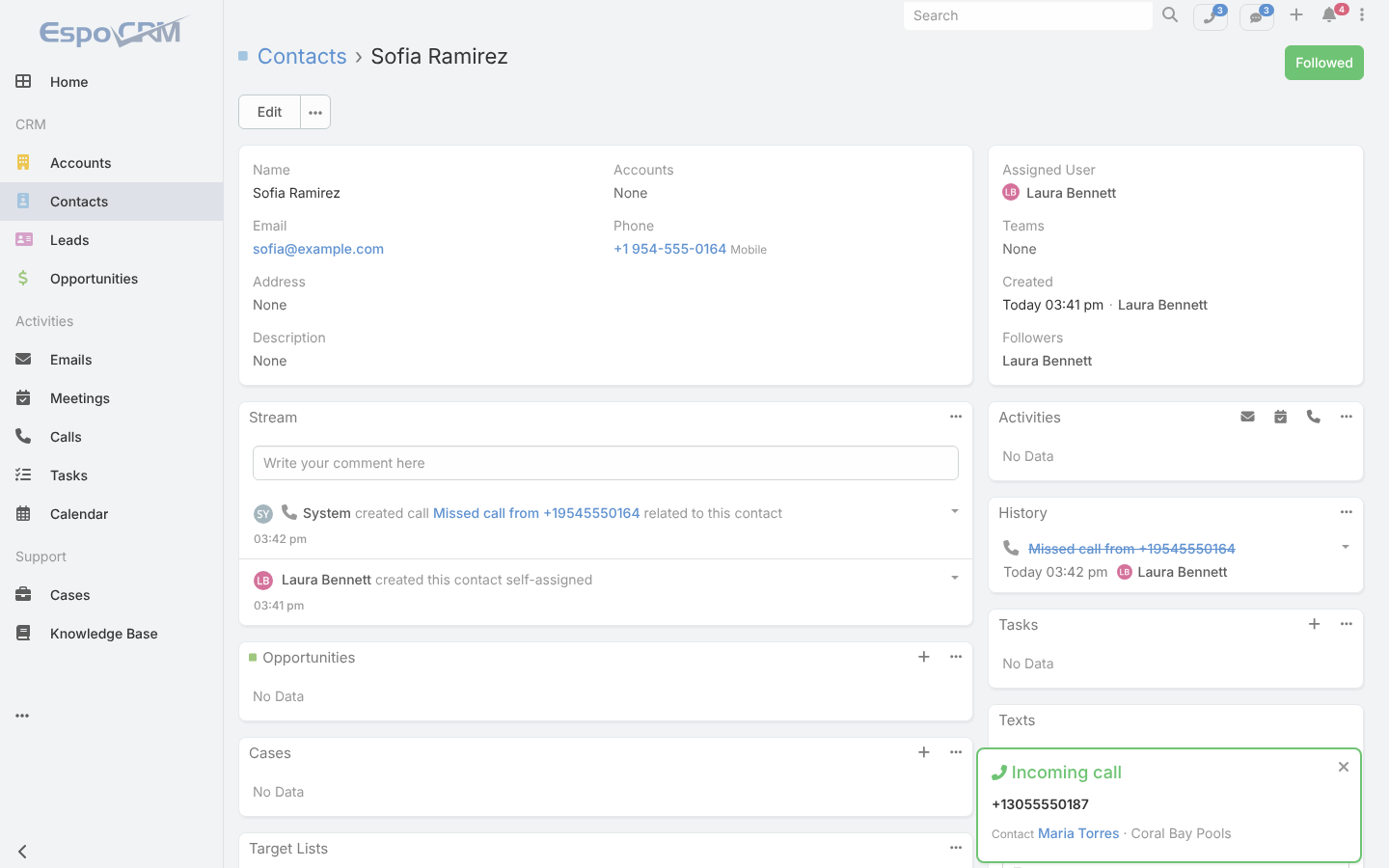
Within a few seconds of a call ringing at your extension or softphone, EspoCRM shows a pop-up with the caller's Contact, Lead or Account. For an unknown number it offers Create Lead or Create Contact, with the phone number filled in. The pop-up closes by itself when the call ends.
Note
Pop-ups, the Calls list and the Call button need a SIP Username (Twilio) or 3CX Extension (3CX) on your User. With 3CX, the ringing pop-up also needs the 3CX API client (see Connect 3CX).
Calls in the top bar
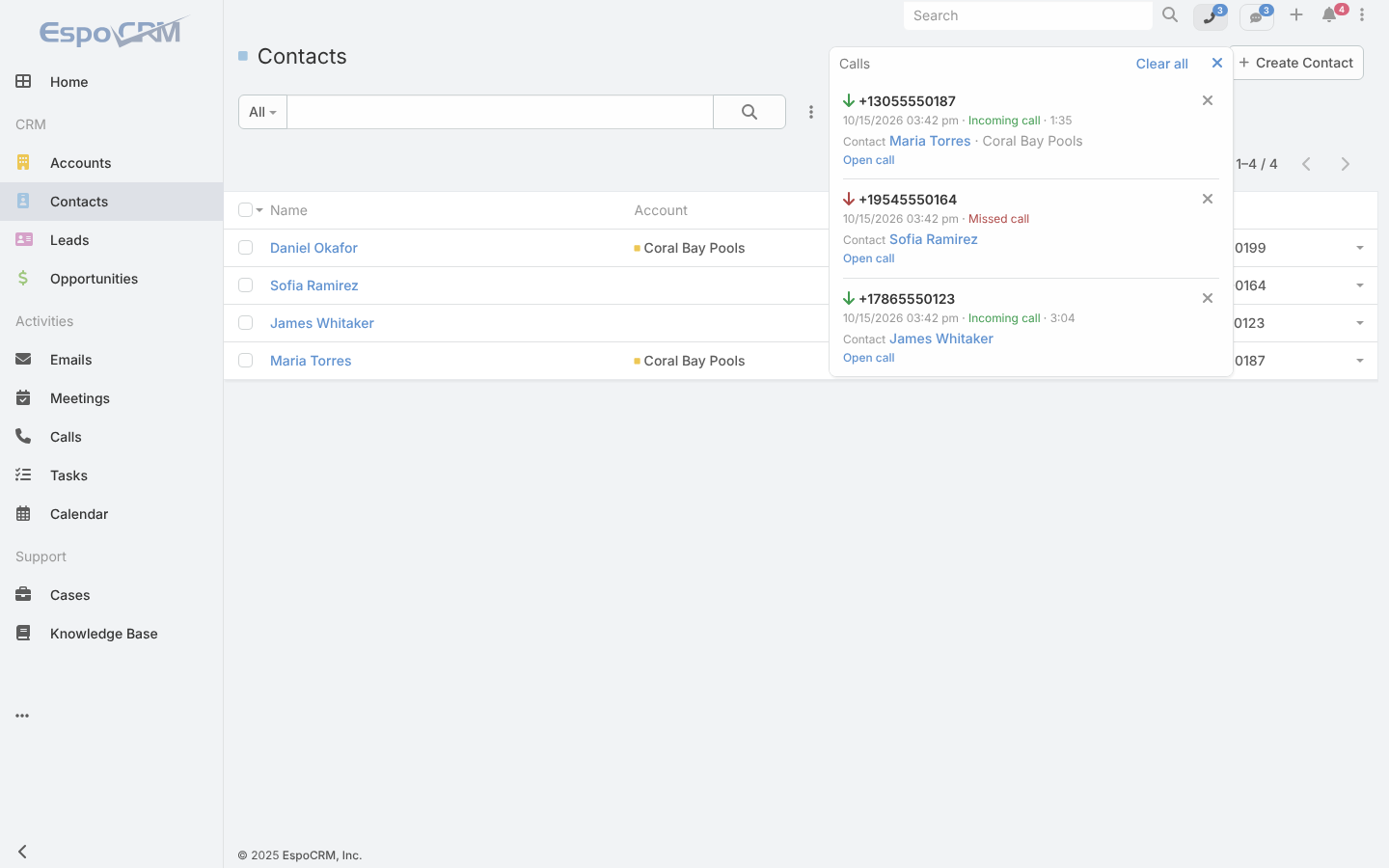
The phone icon in the top bar shows how many calls you haven't cleared yet. Open it to see your finished calls from the last 7 days (answered, missed, voicemail, outgoing) and Clear them one by one or Clear all. With Twilio, the browser phone's controls are at the bottom: Turn on the browser phone, answer or decline, mute, keypad and hang up. Keep an EspoCRM tab open to receive calls; reloading the page during a call ends it.
Calls are logged for you
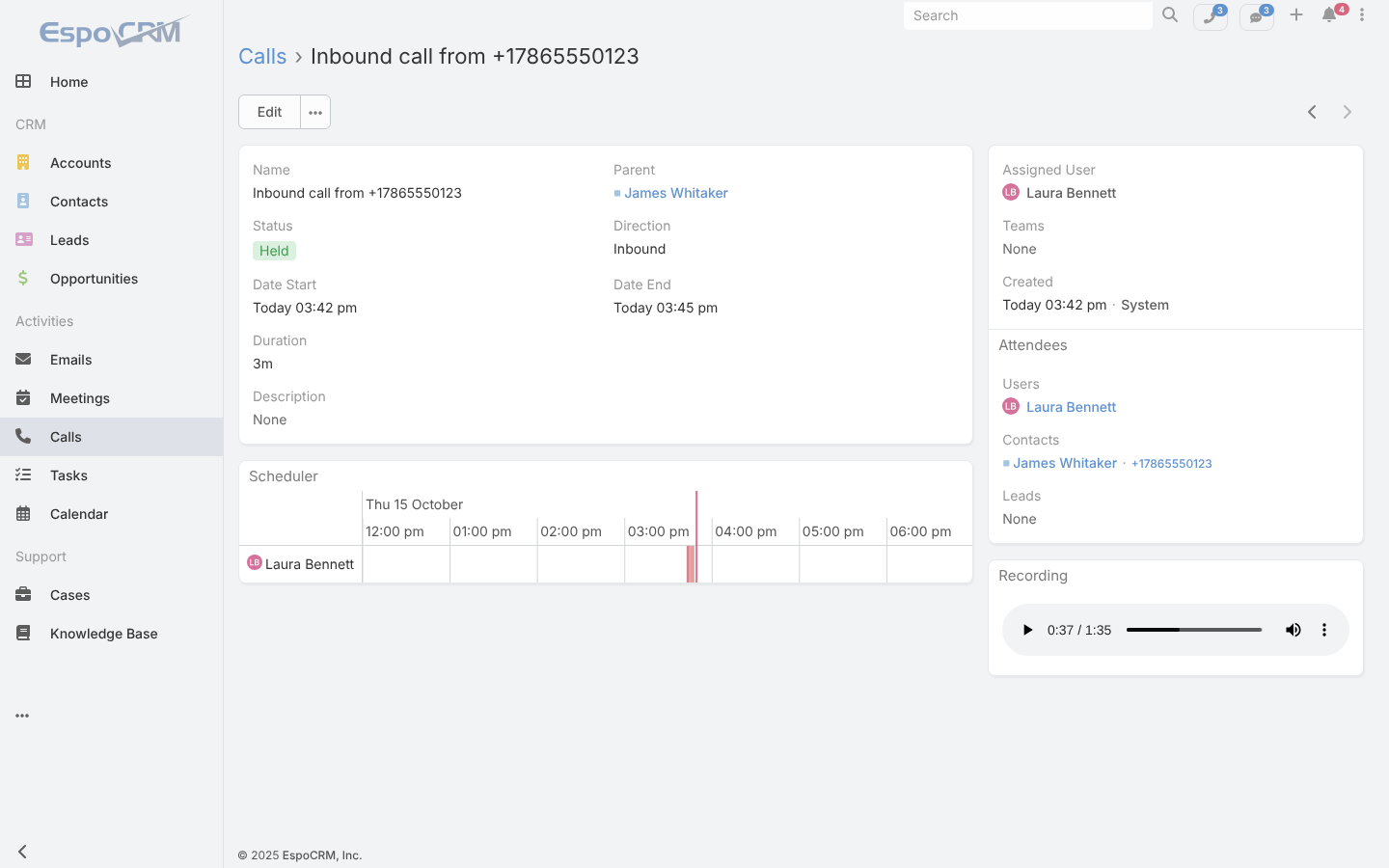
Every call with a known Contact, Lead or Account becomes a Call on that record, assigned to you: Inbound call from …, Missed call from …, Voicemail from …, Outbound call to … or Unanswered call to …, held or not held, with its start and end. Missed calls and voicemails also arrive in the notification bell. Numbers that aren't in the CRM aren't logged.
Call someone
On a Contact, Lead or Account, open the ⋯ menu and choose Call.
- Twilio: your softphone (or the browser phone) rings first; when you answer, the customer's phone rings and sees your company number.
- 3CX: the 3CX web client's dialer opens with the number, or the 3CX app through a phone link.
Recordings and voicemail
When a call was recorded, its Call has a Recording panel that plays it inside EspoCRM. The audio stays in Twilio or 3CX: EspoCRM streams it after checking that you may see that Call, and keeps no copy.
Texts
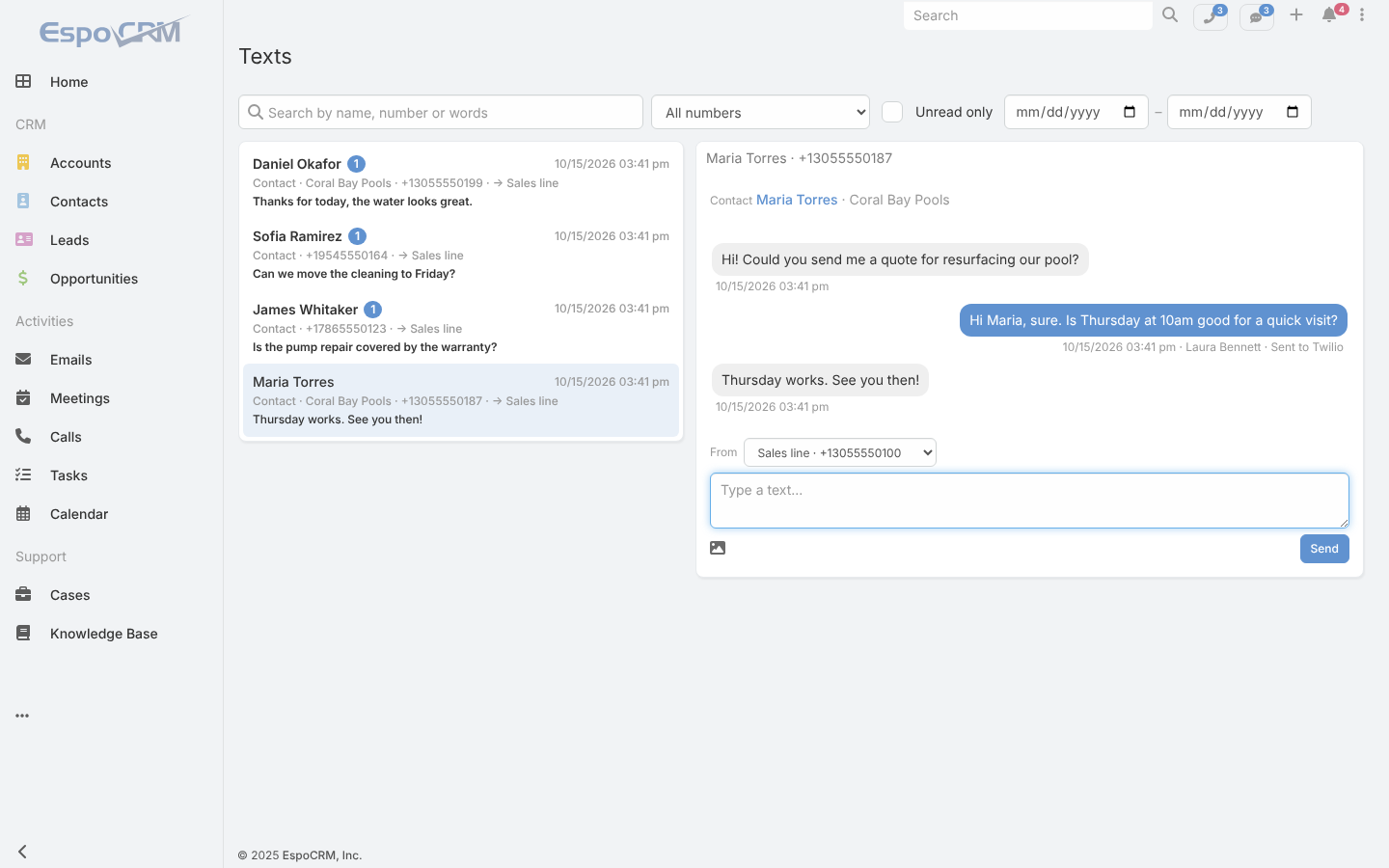
- On a Contact, Lead or Account: the Text action and the Texts panel show the conversation; type and send, and add pictures (JPEG, PNG or GIF, up to 5 per text and 5 MB in total). A text can be up to 1,600 characters.
- Texts in the top bar shows conversations with unread ones counted. All texts opens every conversation you may see, with search (a name, part of a number or words) and filters (number, unread only, dates).
- A new text pops up for a few seconds as New text from …, lands in the notification bell, and can also appear as a desktop notification if your browser allows it.
- If you may send from several numbers, choose the From number; replies go out from the number the customer texted.
- Each text you send shows its delivery status: Sent to Twilio, Sent, Delivered, Not delivered or Failed.
Who is alerted
A new text alerts, in this order: the user assigned to the matching record; if none, the user who last texted that person; if none, the number's Alert first user. The number's Also alert on every text users get every text.
Note
Customer portal users never see calls or texts.